Your phone may alert you to an urgent message, but also to promotions, recommendations, automatic reminders, and updates that do not need an immediate response. When everything arrives with the same sound and visual urgency, it becomes harder to tell what matters. You do not have to turn everything off: decide what deserves to interrupt you, what can wait until later, and when you would rather receive no alerts.
This guide offers a simple, reversible review. Menu names can differ by phone model, operating-system version, or app. If you cannot find an exact option, search your device settings for “notifications,” “Do Not Disturb,” or “focus.”
First, notice what interrupts you
Before changing anything, look at your notification center or your phone’s activity history. For a day or two, notice which apps send alerts, how often they arrive, and whether you act on them or ignore them. The goal is not to measure productivity or reduce a number for its own sake. It is to find interruptions that do not deserve their priority.
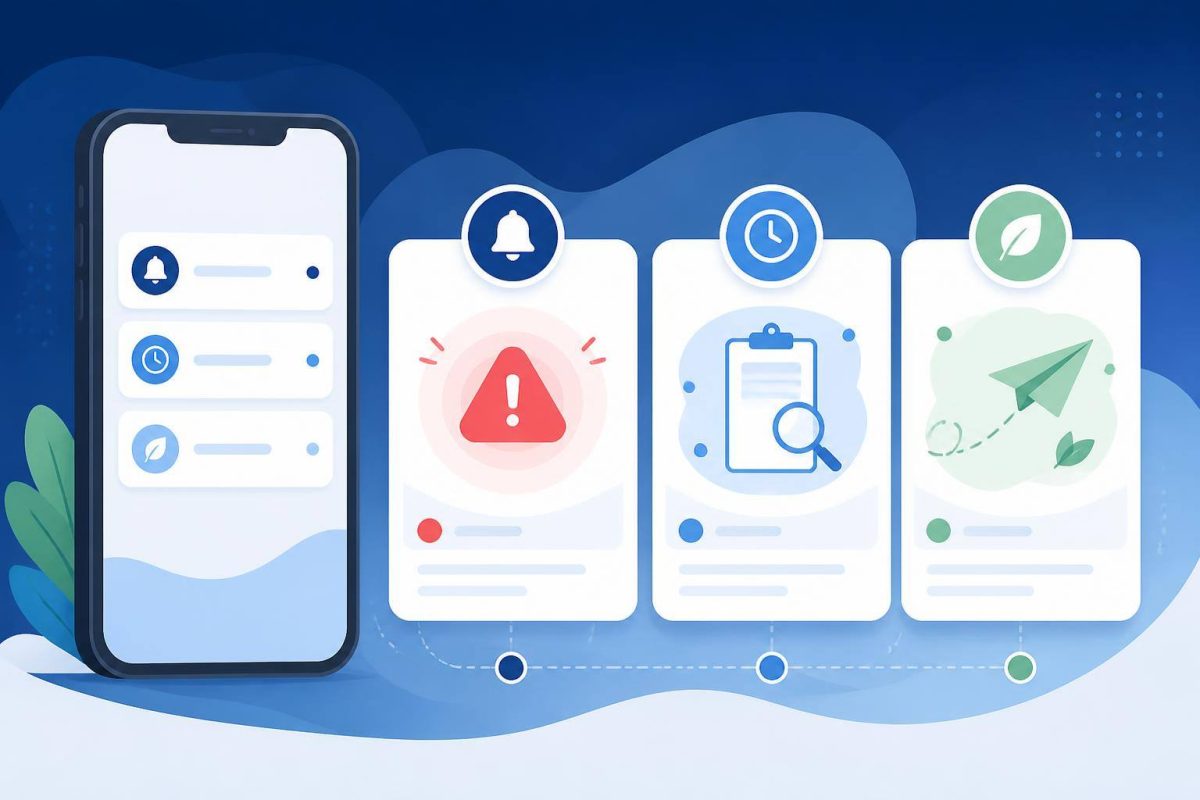
You can sort each app into three groups:
- Needed now: calls from important people, security alerts, or messages that require a quick response.
- Useful, but not urgent: group messages, service updates, and reminders you can review during a break.
- Unnecessary: promotions, content suggestions, or repeated alerts that do not offer enough value.
A single app may send all three types. If it offers notification categories, adjust those individually instead of disabling the entire channel.
Set each app according to its purpose
Start with the apps that interrupt you most and ask: do I need to know this immediately, or do I only want to see it when I open the app? If the answer is the latter, turn off its notifications or make them less visible, without sound or banners.
On iPhone, Apple lets you manage notifications for each app and choose whether they appear on the Lock Screen, in Notification Center, or as banners. You can also change sounds and badges. Android settings let you manage notifications by app and, on some phones, by category; the available options can vary by device. See Apple’s official guide to changing iPhone notification settings and Google’s guide to controlling Android notifications.
For a messaging app, for example, you might keep direct calls and messages from important contacts while silencing reactions, recommendations, or busy group chats. For a store app, you might keep updates about an order in progress and turn off offers. Check the app’s own settings too: some types of alerts can only be managed there.
Choose how alerts appear
Turning off a notification is not your only option. If you still want to see it without being interrupted, show it in Notification Center without sound, vibration, or a pop-up banner. You could also hide its content on the Lock Screen, especially if your phone is visible to other people. That lets you check the alert when you choose, rather than react as soon as it arrives.
Notification badges matter too. A persistent badge can become a visual to-do list. If you do not need that reminder, turn badges off for apps that accumulate alerts and keep them only where they help.
Schedule time without interruptions
For focused work, meals, or rest, a focus mode or Do Not Disturb can silence alerts for a set period. Before turning it on, check which people, calls, or apps can bypass the filter. Set sensible exceptions for important situations and confirm that alarms you rely on are still enabled.
On Android, Modes and Do Not Disturb let you set filters and, on supported devices, schedules; Google notes that some options depend on the phone and its software version. On iPhone, Screen Time can schedule downtime and allow selected apps and contacts to remain available. See the official guides to Android Modes and Do Not Disturb and Screen Time schedules on iPhone.
If you prefer lighter limits, start with a short block for one specific task instead of setting an all-day rule. You can check messages after an activity or during breaks you choose. Keeping another way to reach you in an emergency can make focus mode easier to maintain.
Test your changes and review them
Make an initial round of changes and keep them for several days. Note whether you missed anything important, whether interruptions decreased, and whether an app still sends alerts for unnecessary reasons. Then adjust the filter. A useful setup is not the one that silences the most; it is the one that fits your routine better.
On supported devices, digital wellbeing tools can show usage and notification activity. Android Digital Wellbeing, for example, displays activity by app and offers Focus mode to pause selected apps. This information can guide a review, but it does not have to become a competition. See the official Digital Wellbeing guide.
A good setup does not require you to be available all the time; it helps you choose when you want to be.
A quick review to start today
- Identify the apps that send the most alerts.
- Keep only alerts that genuinely need immediate attention as urgent.
- Silence promotions, suggestions, and repeated notices you can check yourself.
- Schedule a short focus period and set important exceptions.
- After a few days, check what you missed and what still interrupts you unnecessarily.
You do not need to configure everything at once. Start with the two noisiest apps, test the changes, and adjust based on what happens in real life. The goal is not to live without notifications, but to regain the choice of when to pay attention to them.