

A leaked, reused, or phished password can open the door to a business’s email, files, and other systems. Multi-factor authentication, or MFA, adds another verification step to sign-in. It does not eliminate every risk, but it helps ensure that a password alone is not enough to access an account.
Rolling it out is more than switching on a setting. You also need to decide which accounts to protect first, choose a suitable method, and avoid locking the business out if someone loses a phone. This guide lays out a practical process for small teams.
What MFA adds—and what it does not solve
MFA asks someone signing in to provide two or more ways to prove they are authorized. For example, a password and a security key, or a password and an approval in an app. The factors can be based on something you know, something you have, or a biometric characteristic.
The specific benefit is reducing the chance that a compromised password will be enough to access an account. But MFA does not fix excessive permissions, infected devices, scams that trick users into approving a malicious request, or weak account-recovery processes. Combine it with unique passwords, software updates, staff training, and backups. NIST recommends enabling MFA, especially phishing-resistant options, wherever available (NIST: Cybersecurity Basics).
Start with accounts that can open other doors
Make a simple list of services and the people who can access them: business email, user administration, file storage, banking and payments, social media, work tools, remote access, and website dashboards. Note who is responsible for each account and what information or functions it controls.
Begin with business email and administrator accounts. Email is often used to reset passwords for other services; an administrator account may change permissions or create users. Next, protect remote access and accounts that handle sensitive information or money. CISA advises requiring MFA wherever possible, starting with privileged and remote access and people who handle sensitive data (CISA: Require Multifactor Authentication).
- Identify: which accounts exist and who administers them.
- Prioritize: email, administrator access, remote access, and financial systems.
- Review: which MFA methods each service supports and how account recovery works.
- Record: who completed setup and where recovery codes are securely stored.
Choose the strongest method the team can maintain
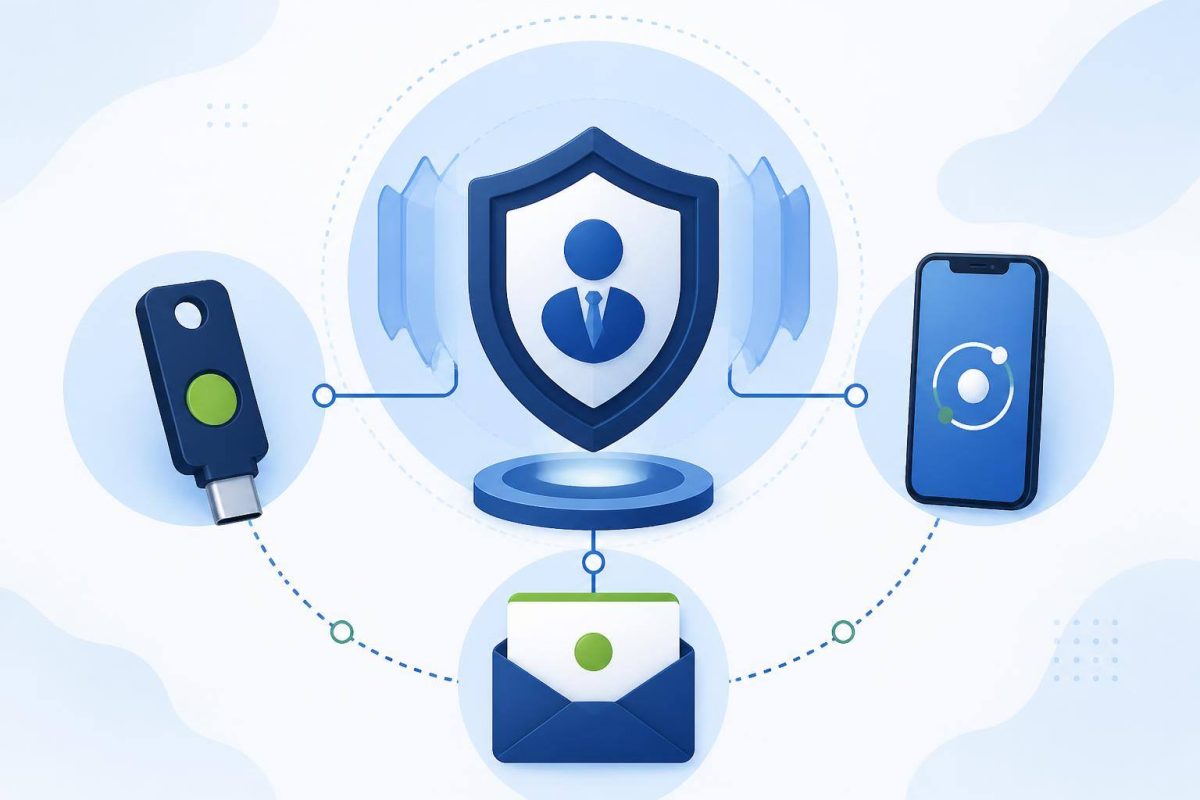
Not all second factors provide the same protection. If a service supports security keys or passkeys, consider them for the accounts with the greatest impact. CISA recommends aiming for phishing-resistant MFA and describes security keys as a particularly robust option. An authenticator app can be a practical alternative when a stronger method is unavailable. Codes sent by text or email are better than no MFA, but offer less protection than stronger alternatives.
The best choice also needs to be usable: if staff cannot use it or do not know how to replace a lost factor, they may end up relying on permanent exceptions. Check the service’s official instructions and define which methods are allowed for each account. For administrators, avoid sharing one identity among several people; use individual accounts where the service supports them.
A second barrier only helps when the team knows how to use it and the business knows how to recover access.
Plan recovery before turning MFA on
Before changing settings, confirm that the recovery email address and phone number are still controlled by the business. Generate recovery codes when the service provides them, and store them somewhere secure and accessible to authorized people—but separate from the account they protect. Do not share them in an open chat or keep them beside the device used as the second factor.
Decide who can authorize recovery and how their identity will be verified, especially when a request arrives marked urgent. If someone loses a phone or key, you need a process to revoke the lost factor, recover the account, and record the change. Do not use one employee’s personal account as the recovery mechanism for the whole business.
Enable, test, and review
- Choose a priority account and check its official security settings.
- Enable MFA and register approved factors using the provider’s instructions.
- Sign out and sign in again to confirm the second factor works.
- Verify recovery without exposing codes or sharing passwords.
- Repeat for groups of accounts and check that no one retains unnecessary access.
Tell the team not to approve sign-in requests they did not initiate. If an unexpected request appears, staff should reject it and report it through the agreed internal channel. Phishing can arrive by email, text, or social media and may impersonate a vendor or colleague. The FTC recommends staff training and verifying suspicious requests through known contact details rather than those included in the message (FTC: Cybersecurity for Small Business).
A checklist for keeping MFA useful
- Periodically review who has administrator access and remove it when it is no longer needed.
- Update your account inventory when someone joins, changes roles, or leaves.
- Store recovery instructions where authorized people can find them securely.
- Review MFA settings after a phone, provider, or sign-in process changes.
- Keep devices and software updated; MFA does not replace those safeguards.
Next step: today, inventory your accounts, choose the email and administrator account with the greatest impact, and enable MFA on one after preparing its recovery process. Then extend the same process to the remaining accounts and assign an owner. That sequence turns general advice into a practice your team can maintain.